Files
File Paths
A file has a filename and a path. The path specifies the location of a file on the computer, as a hierarchy of folders (also called directories).
📦 File C:\photos\2018\home.jpg
- Filename:
home.jpg - Path:
C:\photos\2018(Windows uses the back slash\as the separator symbol in paths ) - Folders in the path (
C:is called the root folder):C: {root} ˪ photos ˪ 2018
❗️ Windows file names and paths are not case sensitive: C:\photos\2018\home.jpg is same as C:\PHOTOS\2018\HOME.JPG.
📦 File /Users/john/home.jpg
- Filename:
home.jpg - Path:
/Users/john(OS-X/Linux uses the forward slash/as the separator symbol in paths ) - Folders in the path (the
/at the start of the path is considered the root folder):/ {root} ˪ Users ˪ john
❗️ OS-X/Linux file names and paths are case sensitive. /Users/john/home.jpg is NOT the same as /USERS/JOHN/HOME.JPG
The Python module os contains functions for dealing with files and folders. For example, you can use os.getcwd() to get the
os.chdir() to change the working directory to a different location.
📦
|
→ |
|
💡 Note how the path 'C:\\temp\\python' uses double slash to
\. In OS-X or Linux, it can be something like /user/john/python (no need for double slash).
An escape sequence is a sequence of characters in a string literal that is taken together and interpreted in a special way. You can use an escape sequence to include a special character in a string literal without interpreting it as a special character. Given below are some examples:
| Escape Sequence | Meaning | Example | Output |
|---|---|---|---|
\' |
single quote | print('How\'s Life') |
How's Life? |
\" |
double quote | print("Say \"wow\"") |
Say "wow" |
\\ |
back slash | print('files\\text') |
files\text |
Another use of escape sequences is to give a special meaning to a character that normally does not have a special meaning. Here are some examples:
| Escape Sequence | Meaning | Example | Output |
|---|---|---|---|
\t |
horizontal tab | print('aaa\tbbb') |
aaa bbb |
\n |
line break | print('hi\nthere!') |
hithere! |
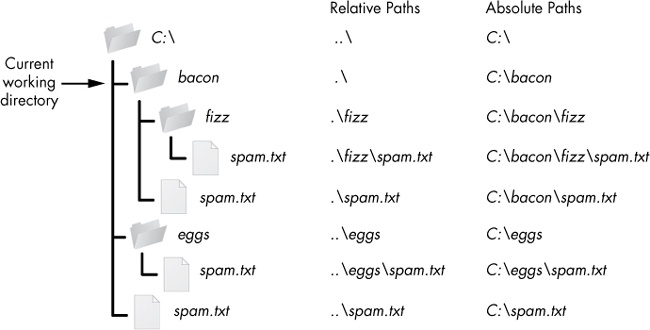
A path that specifies all folders starting from the root is an absolute path. A path that is specified relative to the current working directory is a relative path.
📦 Assume the current working directory is C:\modules\te3201 and you created a new folder inside it named exercises and put a ex.txt file in that folder.
- Absolute path of the file:
C:\modules\te3201\exercises\ex1.txt - Relative path of the file:
exercises\ex1.txt
In a path, you can use the dot . as a shorthand to refer to the current working directory. Similarly, .. can be used to refer to the parent directory.
📦 If the current working directory is C:\modules\te3201, you can use any of the following to refer to C:\modules\te3201\exercises\ex1.txt.
exercises\ex1.txt.\exercises\ex1.txt..\te3201\exercises\ex1.txt..\..\modules\te3201\exercises\ex1.txt
You can use os.mkdir() function to create folders and os.removedirs() to delete folders.
📦
|
→ |
|
os.path module has many functions that can help with paths. For example, os.paths.join() function can be used to generate file path that matches the current operating system.
📦 Consider the code below:
cwd = os.getcwd()
print(os.path.join(cwd, 'ex', 'w2'))
If you run it on a Windows computer in the folder C:\modules\te3201, it prints C:\modules\te3201\ex\w2.
If your run it on a OS-X computer in the folder /Users/john, it prints /Users/john/ex/w2.
❗️ To ensure that your code can work on any OS, you are advised to use os.path.join() function instead of hard-coding the
📦 contrasting hard-coding the separator vs using os.path.join():
| ❌ Works only on Windows | ✅ Works on both Windows and OS-X |
|---|---|
os.makedirs('ex\\w1') |
os.makedirs(os.path.join('ex', 'w1')) |
Exercise : Create Direcotry
Complete the functions given below, to behave as described by their docstrings, so that the code produces the given output.
import os

def create_dir(dir_name):
  """Create a directory dir_name in the current working directory

  Example:
  If the current directory is c:/foo/, create_dir('bar') creates
  a c:/foo/bar directory.
  """
  pass # REPLACE WITH YOUR CODE HERE


def change_dir(relative_path):
  """Change to the directory dir_name relative to the current working directory

  Example:
  If the current directory is c:/foo/, change_dir('bar') changes
  current working directory to c:/foo/bar
  """
  pass # REPLACE WITH YOUR CODE HERE


def print_current():
  """Print current working directory"""
  pass # REPLACE WITH YOUR CODE HERE


def change_to_parent_dir():
  """Change to the parent directry of the current working directory

  Example:
  If the current directory is c:/foo/bar, change_to_parent_dir() changes
  the working directory to c:/foo/
  """
  pass # REPLACE WITH YOUR CODE HERE


def check(dir_name):
  create_dir(dir_name)
  print_current()
  change_dir(dir_name)
  print_current()
  change_to_parent_dir()
  print_current()

check('foo')
check('bar')
⤵️ output when run in REPL.it
/home/runner
/home/runner/foo
/home/runner
/home/runner
/home/runner/bar
/home/runner
import os

def create_dir(dir_name):
  """Create a directory dir_name in the current working directory

  Example:
  If the current directory is c:/foo/, create_dir('bar') creates
  a c:/foo/bar directory.
  """
  os.makedirs(dir_name)


...


def print_current():
  """Print current working directory"""
  print(os.getcwd())
Reading from Files
This section focuses on reading from text-based files (i.e., not binary files).
There are three steps to reading files in Python:
- Call the
open()function to receive aFileobject. - Call the
read()method on theFileobject to receive file content. - Close the file by calling the
close()method on theFileobject.
📦 The code below shows how to read from a text file.
|
→ |
Output (contents of the items.txt):
|
💡 The 'r' argument in open(file_path, 'r') indicates that the file should be opened
It is also possible to read the file content as a list of lines, using the readlines() method.
📦 The code below shows how to read file content as a list of lines.
f = open(file_path, 'r')
items = f.readlines()
print(items) # print as a list
for i in items: # print each item
print(i.strip()) # use strip() to remove linebreak at the end of each line
f.close()
⤵️
['first line\n', 'second line\n', 'third line\n']
first line
second line
third line
💡 Note how each line ends with a \n which represents the line break. It can be removed using the strip() method.
Exercise : File Stats
Complete the functions given below, to behave as described by their docstrings, so that the code produces the given output.
def get_file_content_as_list(filename):
  """Return content of the file as a list of lines

  The file is expected to be in the current working directory.
  The lines in the list contains trailing line breaks.

  Example:
  If the a.txt has two lines 'aaa' and 'bbb',
  get_file_content_as_list('a.txt') returns ['aaa\n', 'bbb']
  """
  return [] # REPLACE WITH YOUR CODE

def get_stats(contents):
  """Given a list of lines, return line count and letter count as a dictionary

  Trailing line breaks (if any) are not counted for letter count.
  Spaces, even trailing spaces, are counted for letter count.
  Example:
  get_stats(['aaa\n', 'bbb']) returns {'lines': 2, 'letters': 6}
  """
  stats = {}
  # ADD YOUR CODE HERE
  return stats

def analyze_file(filename):
  contents_as_list = get_file_content_as_list(filename)
  print('lines in file:', contents_as_list)
  print('stats:', get_stats(contents_as_list))

analyze_file('file1.txt')
analyze_file('file2.txt')
file1.txt (2 lines, 22 letters):
aaa bbb ccc
ddd eee fff
file2.txt (4 lines, 10 letters -- note: the last line has a trailing space, which adds up to 10 letters):
a
bb
ccc
ddd
⤵️
lines in file: ['aaa bbb ccc\n', 'ddd eee fff']
stats: {'lines': 2, 'letters': 22}
lines in file: ['a\n', 'bb\n', 'ccc\n', 'ddd ']
stats: {'lines': 4, 'letters': 10}
strip()removes trailing line breaks but also trailing spaces.replace('\n', '')will remove the trailing line break but will keep the trailing spaces.
def get_file_content_as_list(filename):
  """Return content of the file as a list of lines

  The file is expected to be in the current working directory.
  The lines in the list contains trailing line breaks.

  Example:
  If the a.txt has two lines 'aaa' and 'bbb',
  get_file_content_as_list('a.txt') returns ['aaa\n', 'bbb']
  """
  f = open(filename, 'r')
  lines = f.readlines()
  f.close()
  return lines
Writing to Files
Similar to reading from a file, writing to a file too is a three step process. One main difference is the file needs to be opened in write mode.
📦 The code below shows how to write to a text file.
file_path = os.path.join('data', 'items.txt')
f = open(file_path, 'w')  # open in write mode
f.write('first line\n')
f.write('second line\n')
f.close()
⤵️ contents of the items.txt:
first line
second line
- 💡 The
'w'argument indicates that the file should be opened in write mode. - 💡 Unlike the
print()function that prints content in a new line every time, thewritefunction does not add an automatic line break at the end. You need to add a\nat each place you want a line break to appear in the file.
Opening a file in write mode and writing to it results in overwriting the content of the file contained before it was opened. To preserve original content and add to it, open the file in append mode.
📦 The code below shows how to append to a file.
f = open(file_path, 'a')  # open in append mode
f.write('third line\n')
f.close()
⤵️ contents of the items.txt:
first line
second line
third line
Exercise : Add Line Numbers
Complete the functions given below, to behave as described by their docstrings, so that the code produces the given output. Only one function needs to be modified.
def get_file_content_as_list(filename):
  """Return content of the file as a list of lines

  The file is expected to be in the current working directory.
  The lines in the list contains trailing line breaks.

  Example:
  If the a.txt has two lines 'aaa' and 'bbb',
  get_file_content_as_list('a.txt') returns ['aaa\n', 'bbb']
  """
  f = open(filename, 'r')
  lines = f.readlines()
  f.close()
  return lines

def write_with_line_numbers(lines, filename):
  """Write the strings in lines to the file filename, after adding a line number to each line.

  Example:
  write_with_line_numbers(['aaa\n', 'bbb'], 'out.txt') writes the following content to out.txt
  1. aaa
  2. bbb
  """
  pass # REPLACE WITH YOUR CODE


def process_file(sourcefile, targetfile):
  """Copy the text in sourcefile to targetfile, but also add line numbers to each line.

  Example:
  Assume a.txt has the following text:
  aaa
  bbb
  process_file('a.txt', 'b.txt') results in b.txt having the following text:
  1. aaa
  2. bbb
  """
  contents = get_file_content_as_list(sourcefile)
  write_with_line_numbers(contents, targetfile)
  print(get_file_content_as_list(targetfile))

process_file('file1a.txt', 'file1b.txt')
process_file('file2a.txt', 'file2b.txt')
file1a.txt:
first line

second line
third line
file2a.txt:
hang in there
⤵️
['1. first line\n', '2. \n', '3. second line\n', '4. third line']
['1. hang in there']
def write_with_line_numbers(lines, filename):
  """Write the strings in lines to the file filename, after adding a line number to each line.

  Example:
  write_with_line_numbers(['aaa\n', 'bbb'], 'out.txt') writes the following content to out.txt
  1. aaa
  2. bbb
  """
  for n,line in enumerate(lines):
    f.write(str(n+1) ... ) # COMPLETE THIS LINE
  f.close()
CSV files
CSV files are often used as a simple way to save spreadsheet-like data. Each line in a CSV file represents a row in the spreadsheet, and commas separate the cells in the row. They usually have the .csv extension and
can be opened in spreadsheet programs such as Excel or in any text editor.
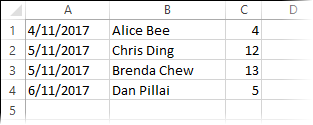
📦 Here is the content of a simple CSV file (click here to download a copy) and how it looks like when opened in Excel.
|
→ |
|
💡 If a value itself contains a comma e.g., Foo, Emily, it can be enclosed in double quotes e.g., "Foo, Emily", to prevent it being misinterpreted as multiple
values.
📦 This example shows how to use double quotes to handle commas inside a value:
7/11/2017,"Foo, Emily",5interpreted as three values:7/11/2017andFoo, Emilyand57/11/2017,Foo, Emily,5interpreted as four values:7/11/2017andFooandEmilyand5
Although CSV files are text files that can be read/written using normal file access techniques covered earlier, Python has an in-built module named csv that provides functions to deal with CSV files more conveniently. For example, it provides a way to read a CSV file as a Reader object that knows how to interpret a CSV file.
📦 The code below shows how to use the csv module to read contents of a CSV file named deliveries.csv:
deliveries_file = open('deliveries.csv') # open file
deliveries_reader = csv.reader(deliveries_file) # create a Reader
for row in deliveries_reader: # access each line using the Reader
  print(row)
deliveries_file.close() # close file
⤵️
['4/11/2017', 'Alice Bee', '4']
['5/11/2017', 'Chris Ding', '12']
['5/11/2017', 'Brenda Chew', '13']
['6/11/2017', 'Dan Pillai', '5']
As you can see, Reader object returns content of a line as a list object with the value of each cell as an item in the list. Replacing the line,
...
print(row)
...
... with the following line,
...
print('Date:', row[0], '\tRecipient:', row[1], '\tQuantity:', row[2] )
...
... will give you the output shown below:
Date: 4/11/2017 	Recipient: Alice Bee 	Quantity: 4
Date: 5/11/2017 	Recipient: Chris Ding 	Quantity: 12
Date: 5/11/2017 	Recipient: Brenda Chew 	Quantity: 13
Date: 6/11/2017 	Recipient: Dan Pillai 	Quantity: 5
Note that all values read from a CSV files come as strings. If they are meant to represent other types, you need to convert the string to the correct type first.
📦 In this example the 3rd value of each row is converted to an int before adding them up.
deliveries_file = open('deliveries.csv')
deliveries_reader = csv.reader(deliveries_file)
total = 0
for row in deliveries_reader:
  # convert 3rd cell to an int and add to total
  total = total + int(row[2])

print('Total quantity delivered:', total)
deliveries_file.close()
⤵️
Total quantity delivered: 34
The csv module also provide an easy way to write to CSV files, one row at a time, using a Write object.
📦 The code below writes two rows to the pricelist.csv file.
output_file = open('pricelist.csv', 'w', newline='') # open file in write mode
output_writer = csv.writer(output_file) # get a Writer object
output_writer.writerow(['apples', '1', '1.5', 'True']) # write one row
output_writer.writerow(['bananas', '3', '2.0', 'False']) # write another row
output_file.close() # close file
The pricelist.csv file will now contain:
apples,1,1.5,True
bananas,3,2.0,False
- 💡 You can open a file in append mode if you want to append to it instead of overwriting current content.
e.g.,output_file = open('pricelist.csv','a',newline='') - 💡 The keyword argument
newline=''need to be used when opening a CSV file in Windows. The reasoning behind it is beyond the scope of this book.
Exercise : Calculate GST
Suppose there is a CSV file in this format:
|
|
→ |
|
Write a program to calculate GST for each item at 7% and give the value as an additional column. The ouput should be in a new file.
|
|
→ |
|
import csv

def calculate_GST(source_file, target_file):
  """Read the data from the CSV file source_file and write
  the data, including the calculated GST values, to the CSV file target_file
  """
  input_lines = read_csv_lines(source_file)
  updated_lines = []

  # ADD YOUR CODE HERE

  write_to_csv_file(updated_lines, target_file)


def read_csv_lines(filename):
  """Return the values in the csv file (specified by the filename) as a list of lists
  each list representing a row of the file.

  Example: If the file file1.csv has the following contents,
  item,price
  book,10.0
  read_csv_lines('file1.csv') returns [['item', 'price']['book', '10.0']]

  """
  # return [] # REPLACE WITH YOUR CODE


def write_to_csv_file(lines, filename):
  """Write the given lines (a list of lists) to the CSV file (specified by filename)

  Example:
  write_to_csv_file([['item', 'price', 'GST']['book', '10.0', '0.7']], 'file2.txt')

  """
  pass # REPLACE WITH YOUR CODE


def process(source_file, target_file):

  calculate_GST(source_file, target_file)
  print(read_csv_lines(target_file))


process('itemlist1.csv', 'updated_itemlist1.csv')
process('itemlist2.csv', 'updated_itemlist2.csv')